Getting Started with TrueNAS: Buddy backups with Duplicati

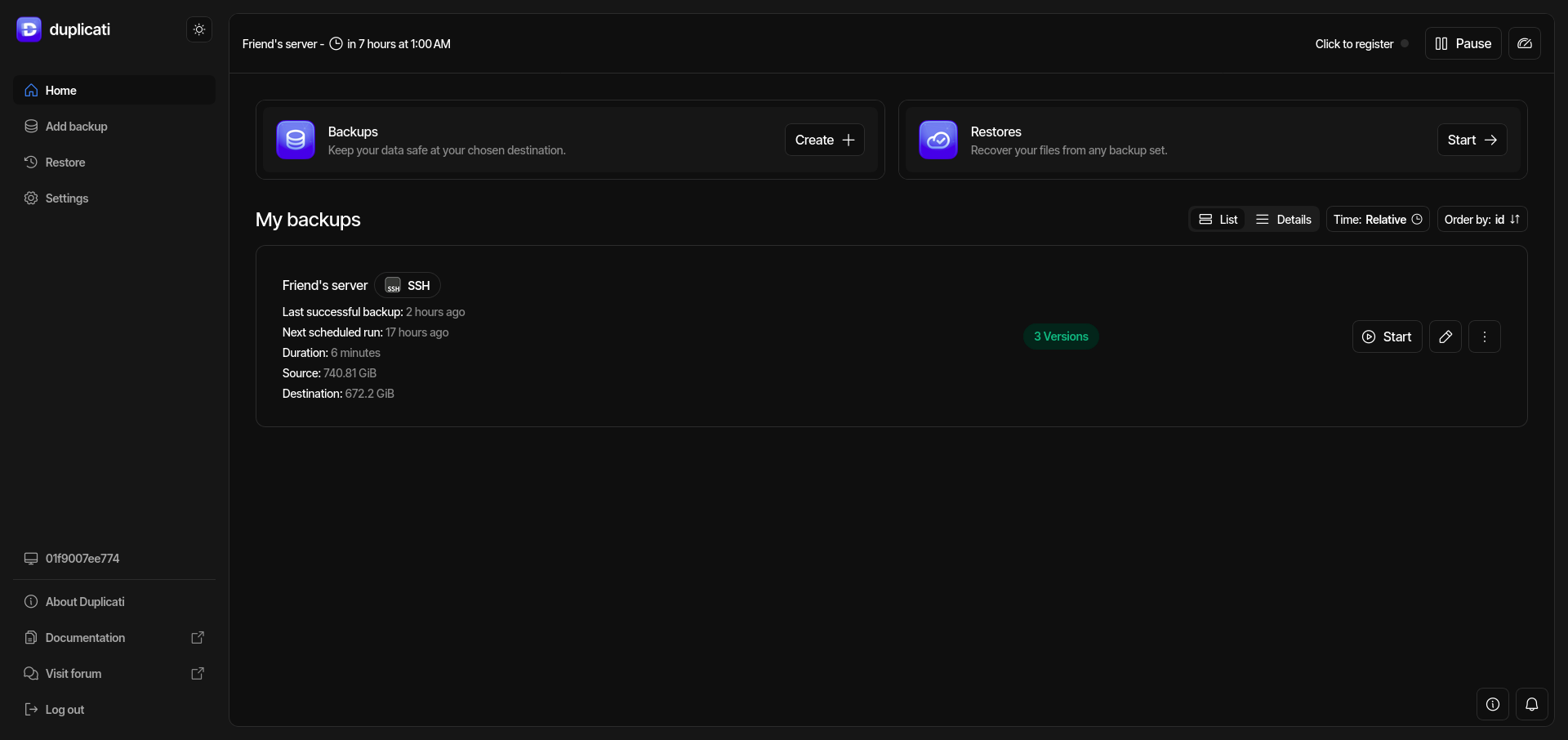
Duplicati dashboard. It shows the backup job, the next scheduled job, and how many copies

I mentioned in my previous post that I had setup my friend and I's servers with three distinct datasets: Data, Media, and Backup.

Data was created as a dataset where all our personal documents would be stored.

Media was created as a dataset for movies and music, which don't require an offsite backup. This is where I put my collection of movies and series that I've ripped and make available to Plex.

Backup is the offsite backup dataset. This is where my cloud servers backup, as well as as where our backups of each other's Data dataset lives.

Now, to be honest, I didn't setup encrypted datasets on our servers, as I've not done it before and this data is too important to me to take a chance. Someday I'll toy with it and learn that aspect of TrueNAS and ZFS. The problem with that decision is that you can't just use a TrueNAS Replication to encrypt your data on the remote system only. Additionally the cloud sync tasks include multiple methods of backing your data up to remote systems, including FTP and SFTP, but also do not include encryption.

This is why I chose Duplicati (Website, Github). 

Duplicati is available as an community provided App in the TrueNAS app marketplace. The software's Github page states:

Duplicati is a free, open-source backup client that securely stores encrypted, incremental, and compressed backups on cloud storage services and remote file servers. It supports:

  Amazon S3, IDrive e2, Backblaze (B2), Box, Dropbox, FTP, Google Cloud and Drive, MEGA, Microsoft Azure and OneDrive, Rackspace Cloud Files, OpenStack Storage (Swift), Storj DCS, SSH (SFTP), WebDAV, Tencent Cloud Object Storage (COS), Aliyun OSS, and more!

Duplicati is licensed under the MIT license and is available for Windows, macOS, and Linux.

This is the perfect solution to allow us to keep our data on each other's servers and still retain our privacy!

Setup was rather simple, as you click 'Install' in the market and you're presented with a page to add your storage to the app and set a password. I added /mnt/Pool, and mounted it on my Duplicati deployment as /mnt/Pool as well.

Once it's deployed you'll need to hit the WebUI button to access the software. One weird thing is Duplicati on TrueNAS, by default, cannot be access by hostname. You'll need to access by IP, go into the settings, add your hostname(s), and restart the service.

Allow remote access (requires restart)  By allowing remote access, the server listens to requests from any machine on your network. If you enable this option, make sure you are always using the computer on a secure firewall protected network.

The next step was to create users and directories. On his server I created a backup_steve user with an SSH key. Then I created another dataset under Backup named backup_steve, and changed the ownership of that dataset to the user. On my server I did the same process with a backup_friend user and directory. Finally, on both servers, I had to go to the TrueNAS services settings, start SSH, and tick the Start Automatically slider. Also hit the pencil while you're at it and make sure Allow password authentication is unchecked.

Then in Duplicati I created a new backup. You name it and setup encryption. It defaults to AES-256, but you can turn it off or use GPG. Once you've typed in your encryption password you hit next and choose your storage type. There are many, many options, but for our use we chose SSH. From here you enter the server, port, path, and username. You then hit Add Advanced Option and ssh-key. Paste in the private key and hit Test Destination. As long as it's successful you're ready to continue.

Backup destination screen which asks for server, port, and username.

Next up is the source selection, which was easy. I specified /mnt/Pool/Data.

Then you set the schedule. By default it's set to run at 1am daily. Sounded good to me. Continue.

The last screen is where you setup backup retention. By default it's set to Smart backup retention, which means there will be one backup for each of the last 7 days, each of the last 4 weeks, and each of the last 12 months. I don't expect our data will change a lot, it's deduplicated, and right now we have plenty of room, so that's what I chose.

Over time backups will be deleted automatically. There will remain one backup for each of the last 7 days, each of the last 4 weeks, each of the last 12 months. There will always be at least one remaining backup.

That's it! Just check on it the next day to make sure your backups are processing properly. Duplicati does have the option to email logs, which I may look into in the future.

Of course with this to work correctly from two different locations we had to setup dynamic DNS hostnames and setup port forwarding on our firewalls. I personally use freedns.afraid.org for my dynamic DNS.

Getting Started With TrueNAS: The Server and Installation

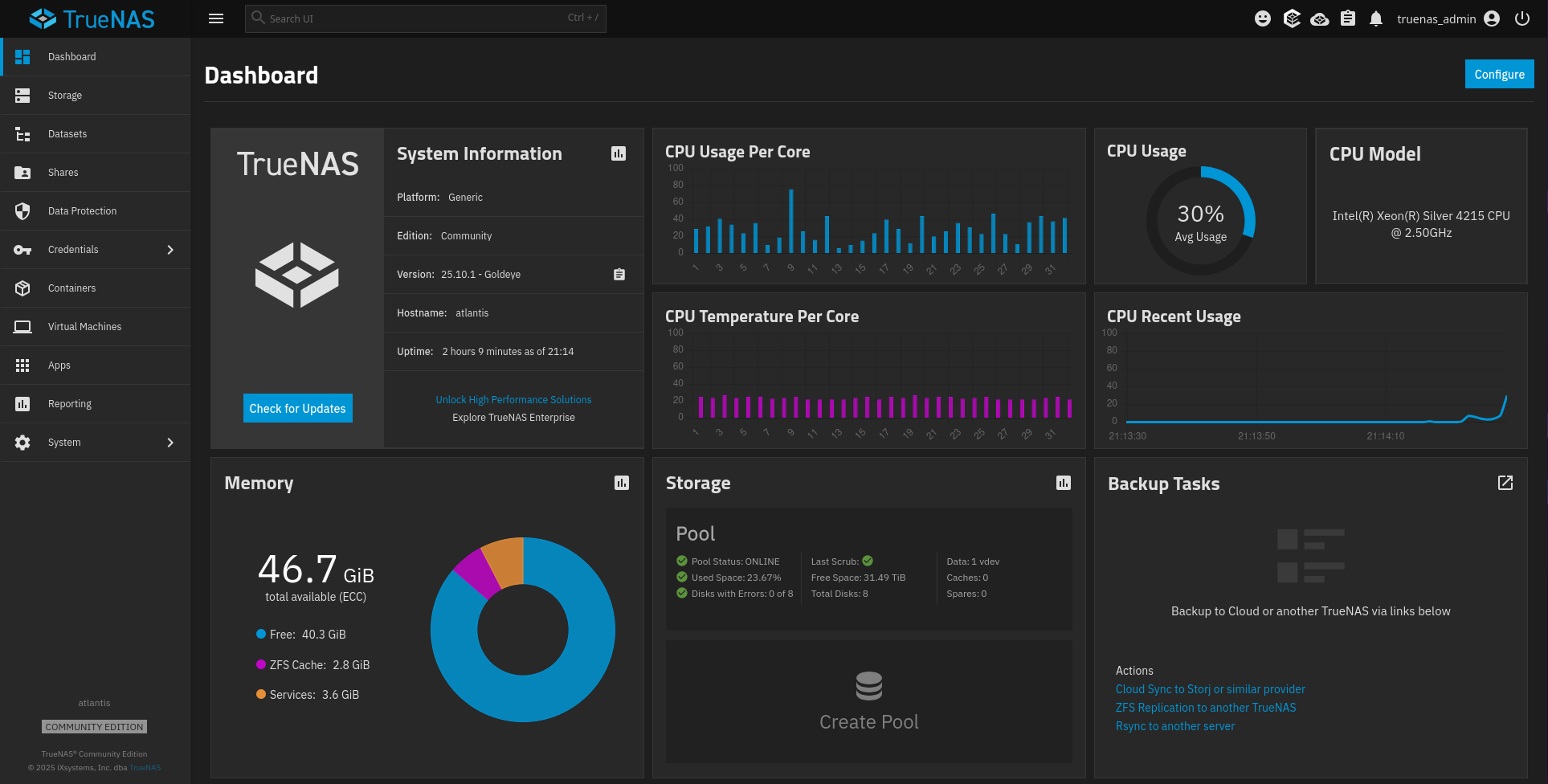
TrueNAS dashboard

My server build turned into two server builds. My friend and I each acquired a used Dell PowerEdge R540 with nearly identical specs. My server came with:

  • 2x Intel(R) Xeon(R) Silver 4215 CPU @ 2.50GHz
  • 48 GB RAM
  • 10x Toshiba 8TB 7200 RPM SAS drives

Fortunately for me, I had some spare Intel 400 GB data center SSDs, so I jumped on Amazon and grabbed some generic 3.5" drive caddies with 2.5" adapters. The LED on the units isn't as bright as the Dell branded caddies, but work just as well otherwise. I had to remove the RAID that was on the drives. After that I removed two of the Toshiba drives. Finally I put the two new 400 GB SSDs in. 

The TrueNAS installation is pretty simple. I selected both of the SSDs for installation, which created a mirrored boot pool. It then asks whether you'd like to setup your administrative user (truenas_admin) or configure using Web UI. I chose to setup the user, which prompted me to create a password. It then started the installation.

Gray text console on black. Gives information on accessing the web interface, configuring network settings, setting a one-time root password, accessinng the TrueNAS or Linux shell, and options to reboot and shutdown.

Once the installation finished and rebooted TrueNAS by default boots to a setup console that shows information and lets you administer your server. The first thing I did was to change the IP from dynamic to static. Both the TrueNAS console and the web UI give you 60 seconds after changing network settings to validate that they work. If you don't save the settings in that 60 seconds it will revert to the previous settings. This is a great feature, especially when you're administering remote or headless systems.

Next I headed to the storage menu to create a pool for my data. TrueNAS requires one pool for the OS itself, and one pool for data. Each pool can be one or more disks. Please use at least two mirrored disks per pool. I ended up turning these 8x 8 TB SAS disks into a 41.25 TB RAIDZ2 pool. RAIDz2 requires at least 3 disks, and is equivalent to RAID 6, and can survive two simultaneous disk failures. I named this pool Pool.

After setting up at least one data pool you're ready to get down to business. The first thing I did was begin to setup my basic file structure. Under my Pool pool, I made individual pools for Data, Media, and Backups. More on these in my next post. After that it was time to start installing apps. While I plan to move my business apps over to the new server, I wanted to start with my home media needs.

So I went to the Apps menu. The first thing to do is to set a pool to start that data. I only have one pool that I can use for data, so this was a no brainer. Had I made multiple pools (maybe another SSD pool for apps, and hard drives for file storage, as an example). After that I proceeded to install Plex. After a quick install I was able to spend the better part of a day moving my media collection from my old Ubuntu Plex container to my TrueNAS system.

Now I've managed to shutdown my old home server and I'm fully reliant on TrueNAS.


Tags

Getting Started With TrueNAS: Background

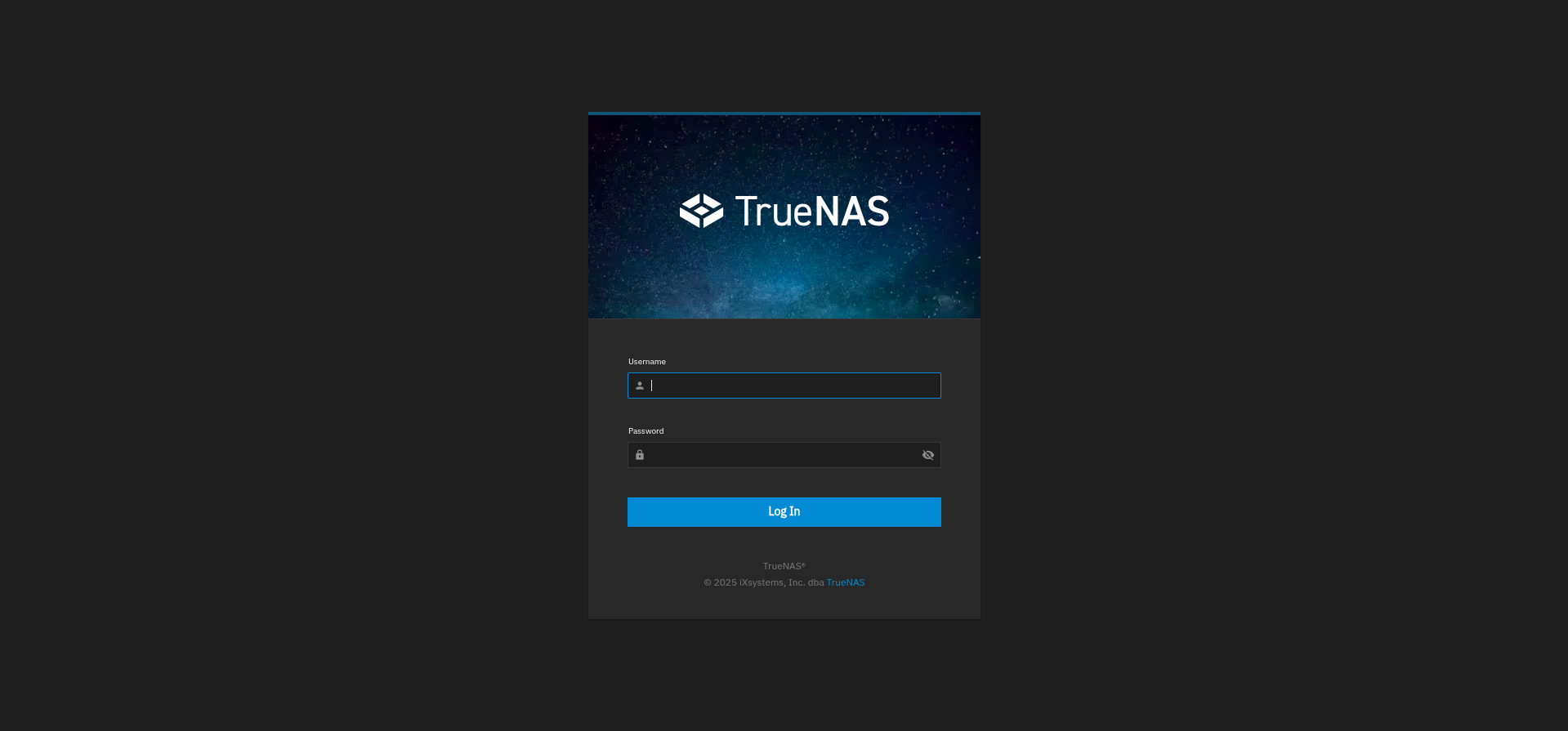
A login page. TrueNAS logo with username and password fields.

A few months ago I picked up a client looking for management of their TrueNAS servers. They had four, now five, servers spread across three physical locations. While I've had limited experience with FreeNAS and TrueNAS CORE (version based on FreeBSD), I really didn't have much experience with the newer TrueNAS SCALE, now called TrueNAS Community Edition. It's based on Debian, which I did have plenty of experience with. Additionally, I also have quite a bit of experience with Nextcloud, which they have three instances of.

The first task was software updates. All four servers had various versions of TrueNAS, including one CORE system. I did some testing in a personal virtual environment, and every upgrade from CORE to SCALE was flawless. I'm sure it helped that the CORE system didn't have any apps, and was purely used as a file server.

The second task was remote access. I was given after hours access to workstations via Rustdesk, but needed to secure my own access for flexibility. I'm a huge fan of Netbird, so that's the direction we went. I registered for an account and followed this video to setup a birdnet using a Compose file. Fortunately for me the Netbird client had recently introduced multiple profiles, which has helped manage computers for multiple clients. (Note: There's now a TrueNAS app for Netbird.)

The next thing I had to worry about was data protection. We initially started out with USB pools for external backups. The client ended up building a new TrueNAS server to place at another location for replication of snapshots. I had to do cleanup of some old snapshots, as two of the systems ended up passing 10,000 snapshots due to very old snapshots not being deleted. Finally I setup notifications via SMTP using Sendamatic as my transactional provider.

After spending so much time in TrueNAS I've grown to love it. I've decided to migrate from a Debian+Incus server to TrueNAS. I've already started the process, and plan on writing additional posts in the 'Getting Started With TrueNAS' series about the process, app selections, and more.


Let's discuss your project!

Or fill out the following form to get in touch!

Protected by Spam Master